Kameleo
Legacy guide: screenshots and helper-tool steps may differ from the current product.
This is an English translation of a legacy guide. For the original wording, read the Chinese original.
Did you know that your browser is sending information to the website’s servers every time you visit the site? It is not enough to change the IP address in each case as the GeolocationAPI can still reveal your location, or WebRTC IP detection can leak your real IP address.
Browser fingerprinting is already affecting web scraping, and it will probably become an even bigger problem in the future.
Kameleo is a Stealth Browsing Platform for both Desktop and Mobile. Kameleo app helps to beat the popular browser fingerprinting techniques and ensures 100% privacy on the internet. If you want to find out more Kameleo benefits, check out their official website by clicking here.
Download and install the Kameleo app :https://kameleo.io/downloads/
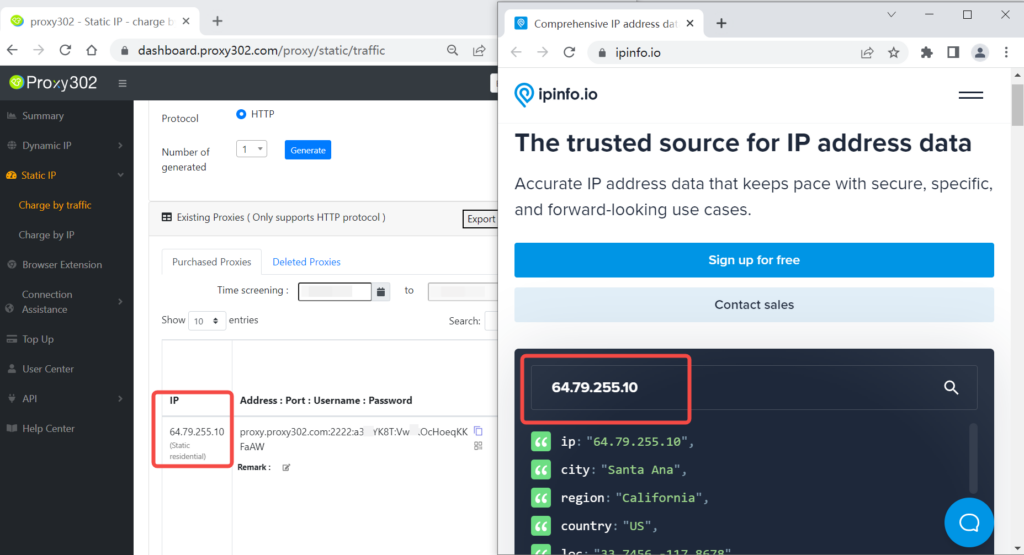
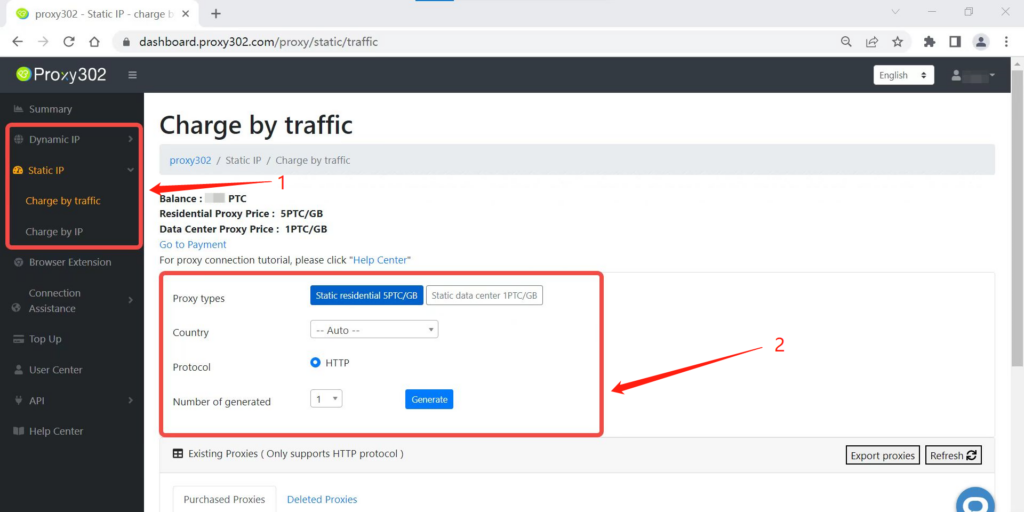
1.Log in Proxy302 and choose the preferred proxy product,click on the create button.
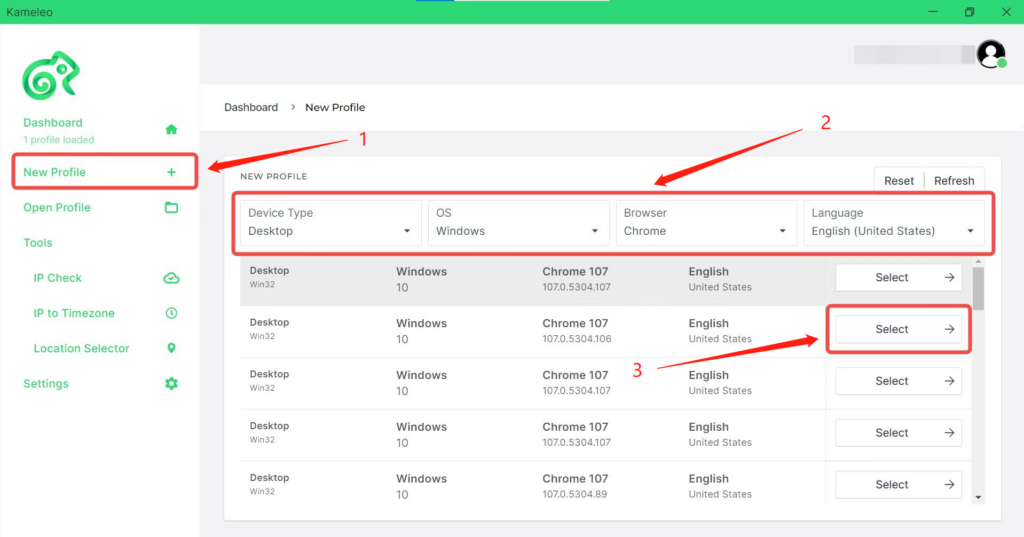
2.Click on New Profile and select a preferred profile.
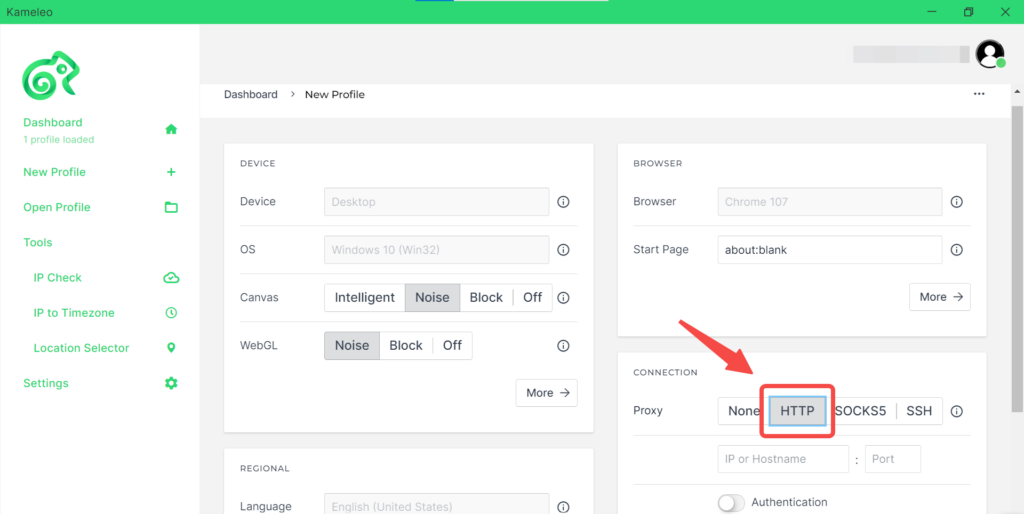
3.Select HTTP/SOCKS5 as a Proxy on the Profile Edit Page.
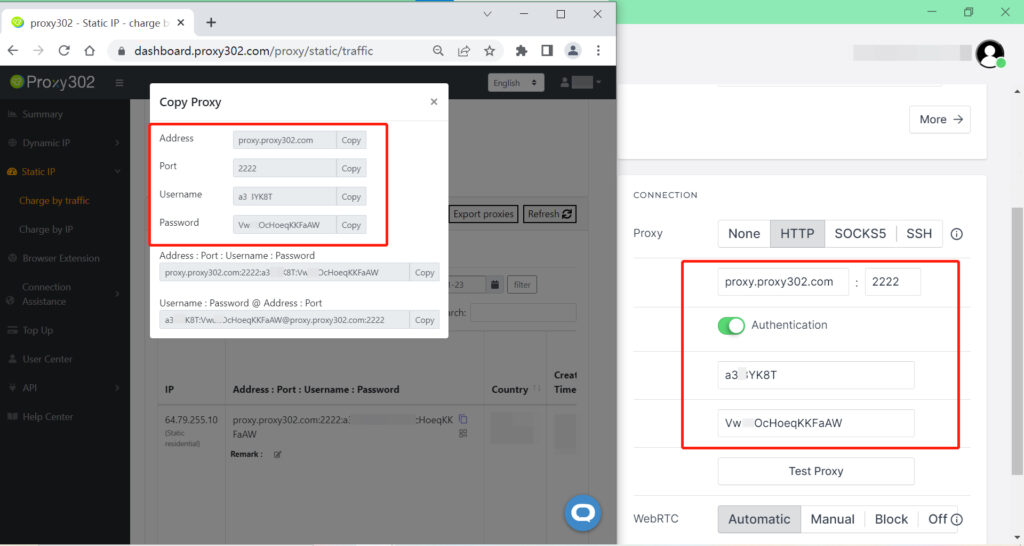
4.Copy and paste the required data to Kameleo. (IP address:Port:Username’:Password)
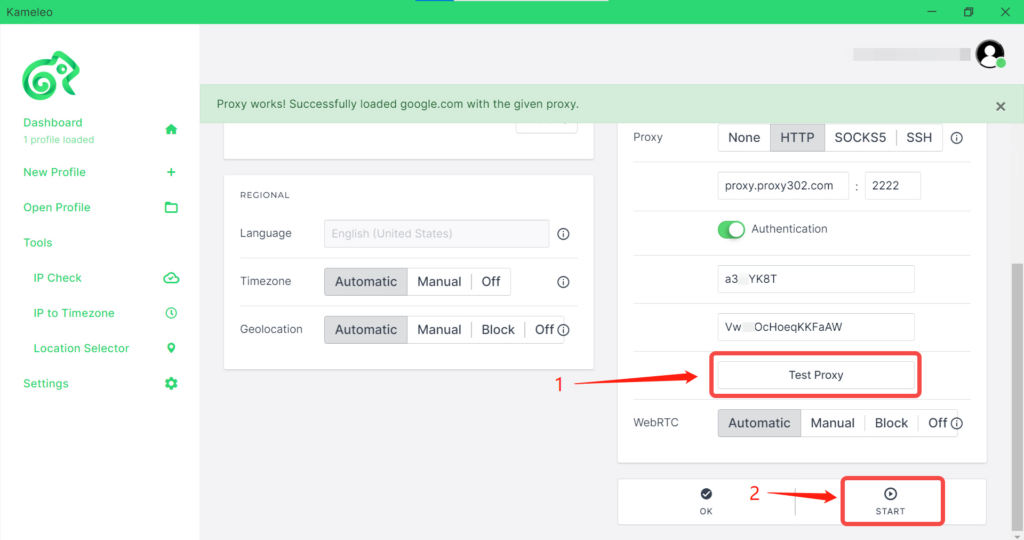
5.By clicking on Test Proxy, you can check that everything is correct. Leave everything on Automatic, then Start the profile.
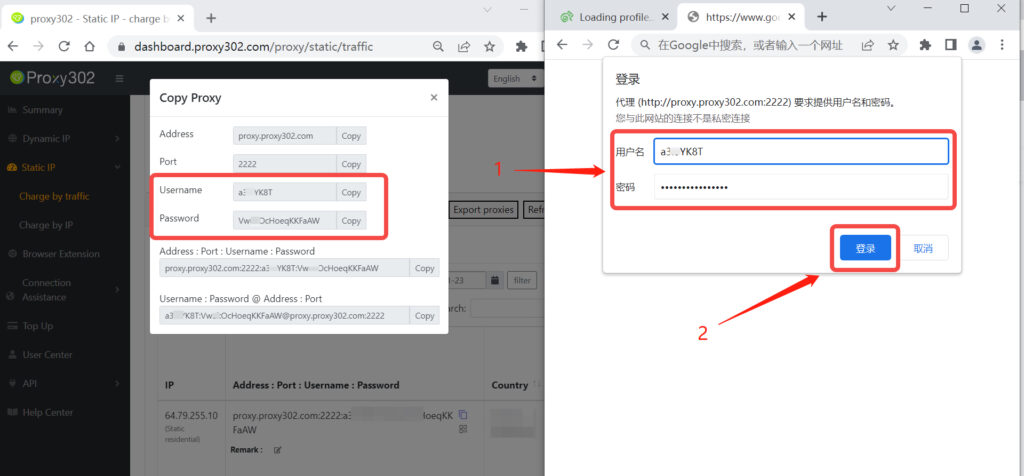
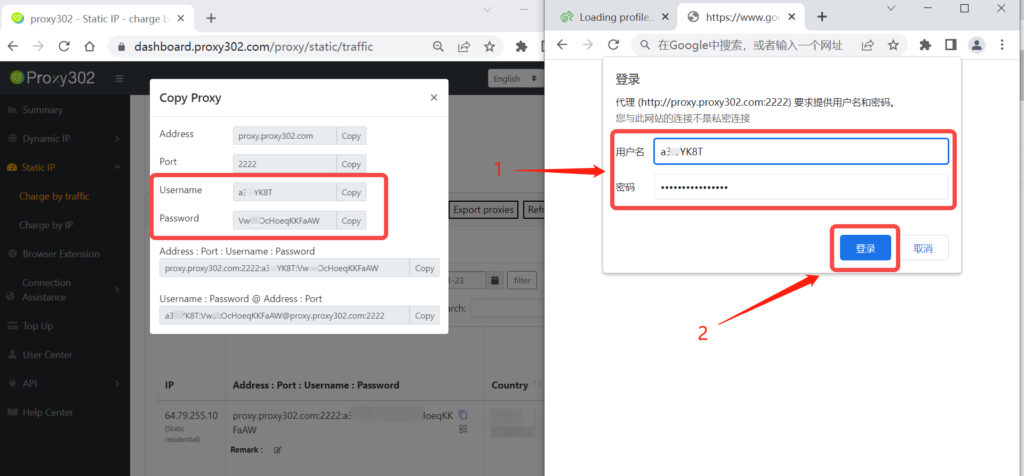
6.Copy and paste the required data to secondary verification.(Username’:Password)
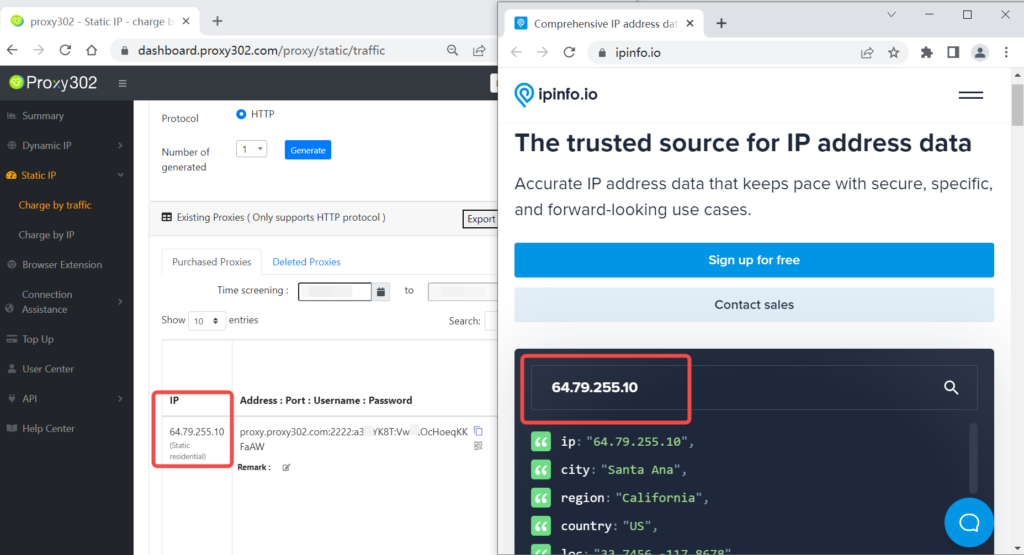
7.Search the site”ipinfo.io” to check that everything is correct.
Using Proxy302 in the Kameleo browser requires an overseas network connection. If you do not have an overseas network, please refer to the Connection Tutorial for Non-Overseas Environments; if you are already connected to an overseas network, please refer directly to the Connection Tutorial for Overseas Environments.
Connection Tutorial for Overseas Environments1.Log in to the Proxy302 client, select the required proxy type, country, and protocol type (HTTP/SOCKS5), then click to generate the proxy.
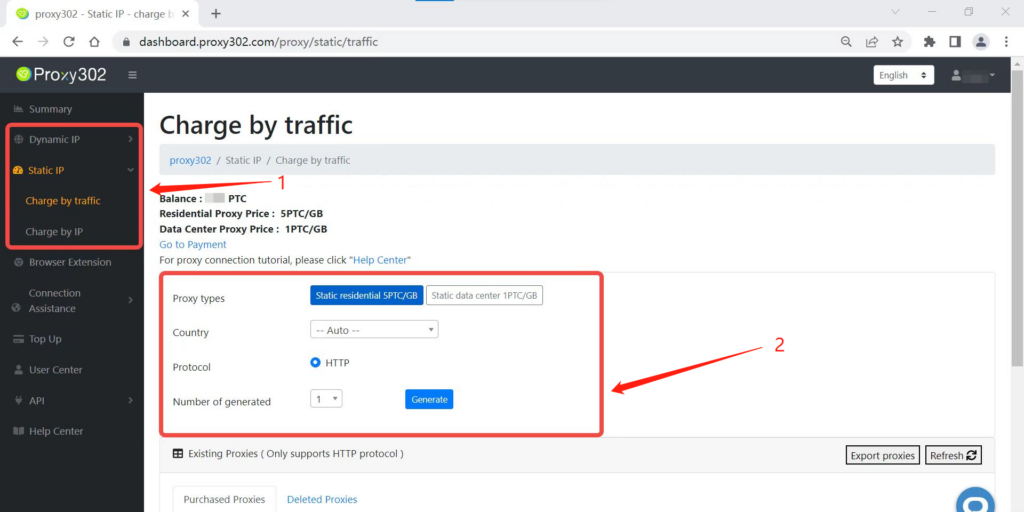
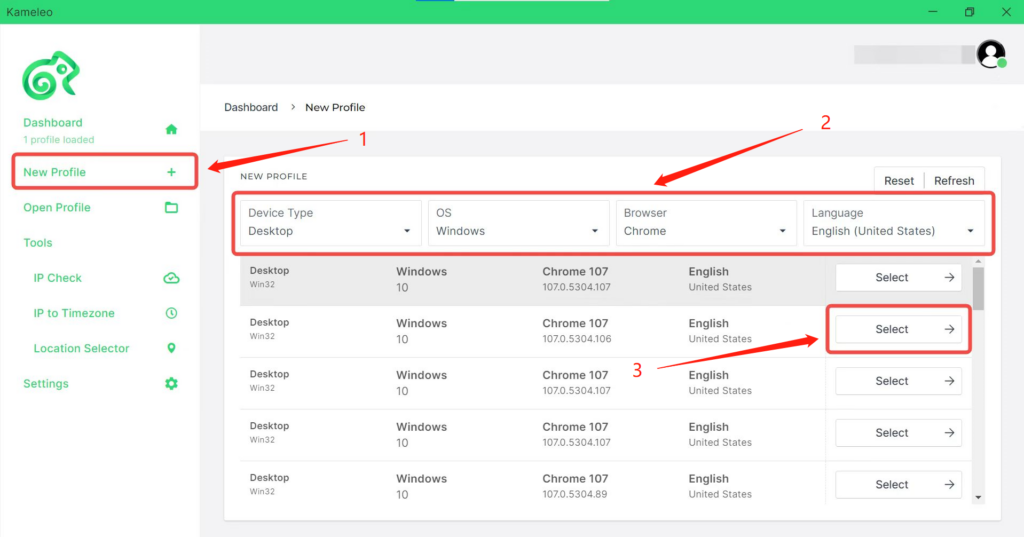
2.Click "New Profile" and select your preferred profile.
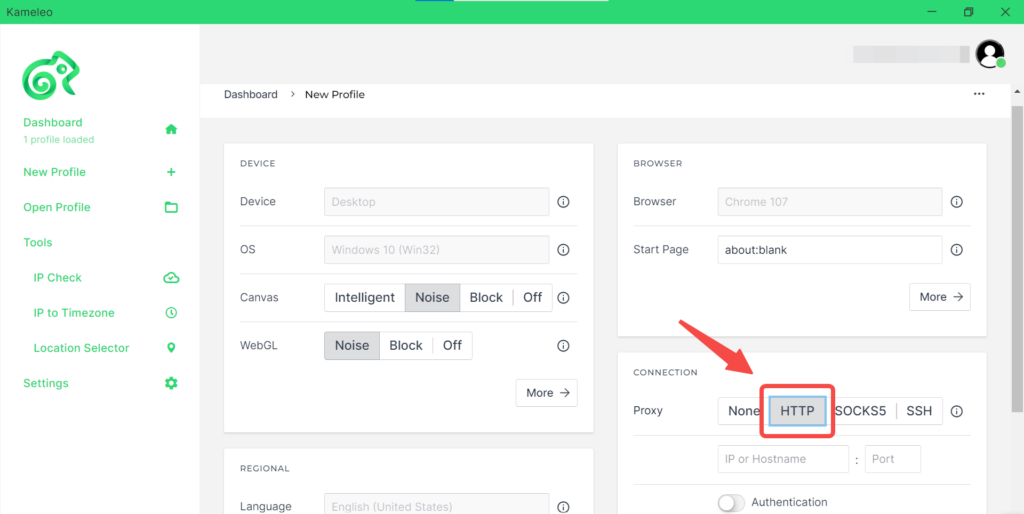
3.Select the corresponding proxy protocol: HTTP/SOCKS5.
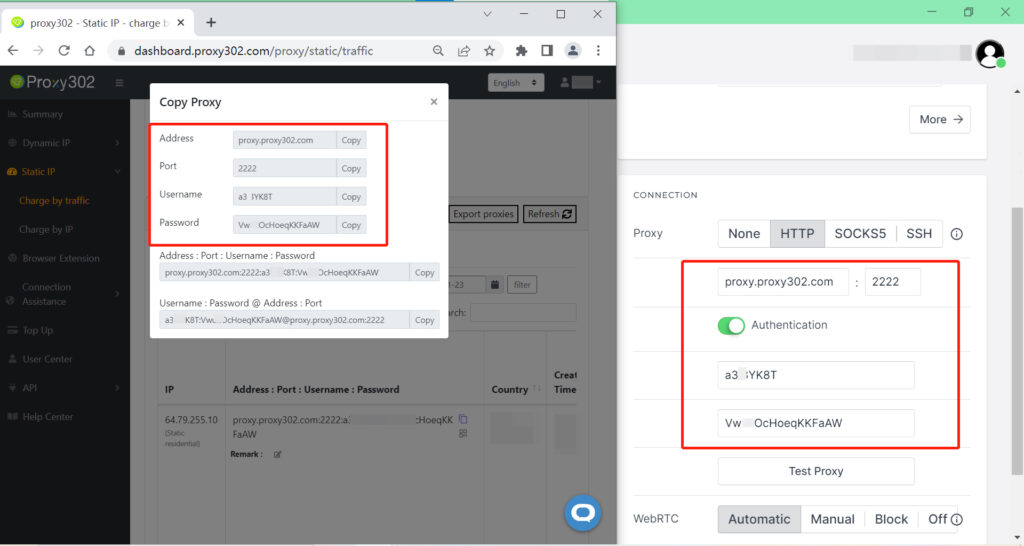
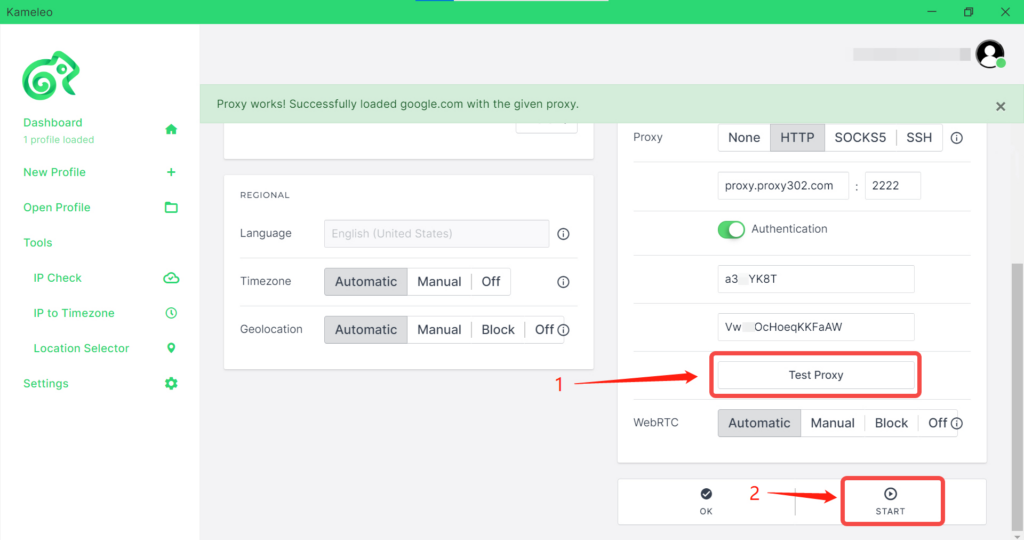
4.Copy and paste the proxy information generated by Proxy302 [Proxy Address : Port : Username : Password] into the Kameleo browser.
5.Click the [Test] button, and after successfully connecting to the proxy, click [Save and Open].
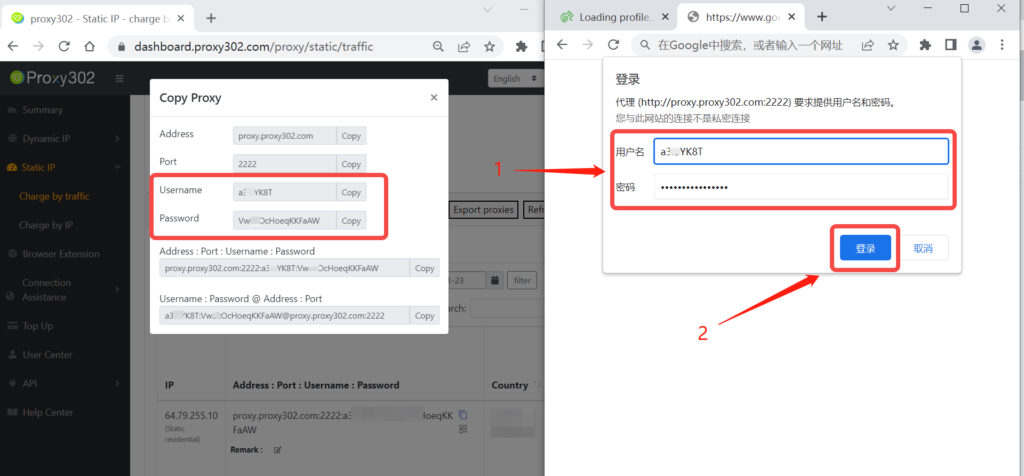
6.After opening the Kameleo browser, secondary verification is required; enter the [Username : Password].
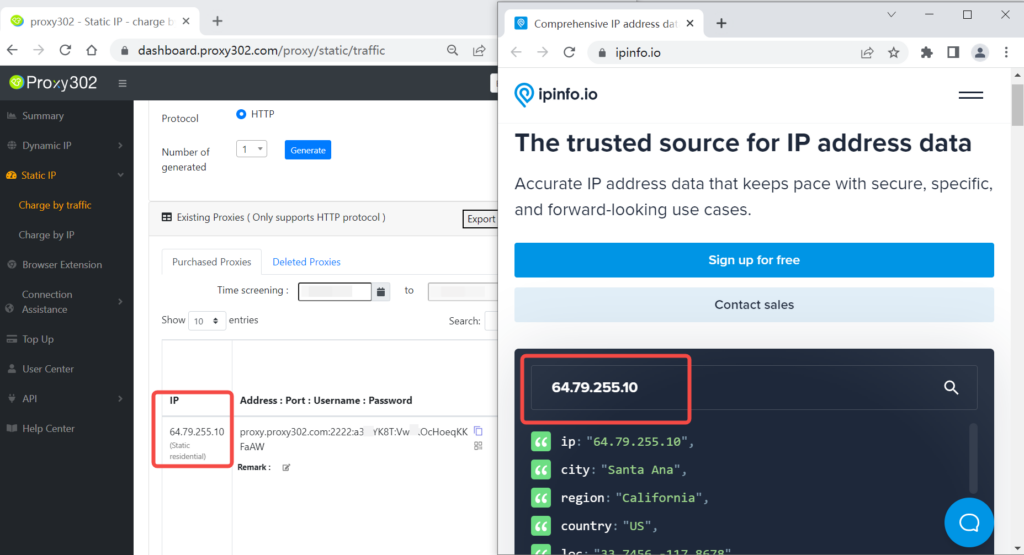
7.Enter "ipinfo.io" in the browser; if the IP address on the page matches the configured proxy IP, the proxy is set up successfully.
Connection Tutorial for Non-Overseas Environments
1.Log in to the Proxy 302 client, open [Connection Tools] - [Auxiliary Tools], and click to download.
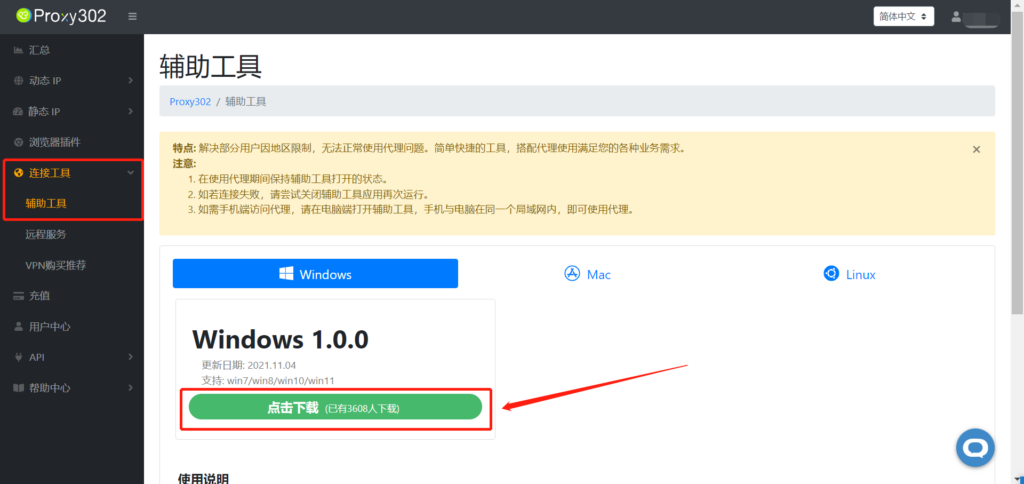
2.Click the [Run] button.
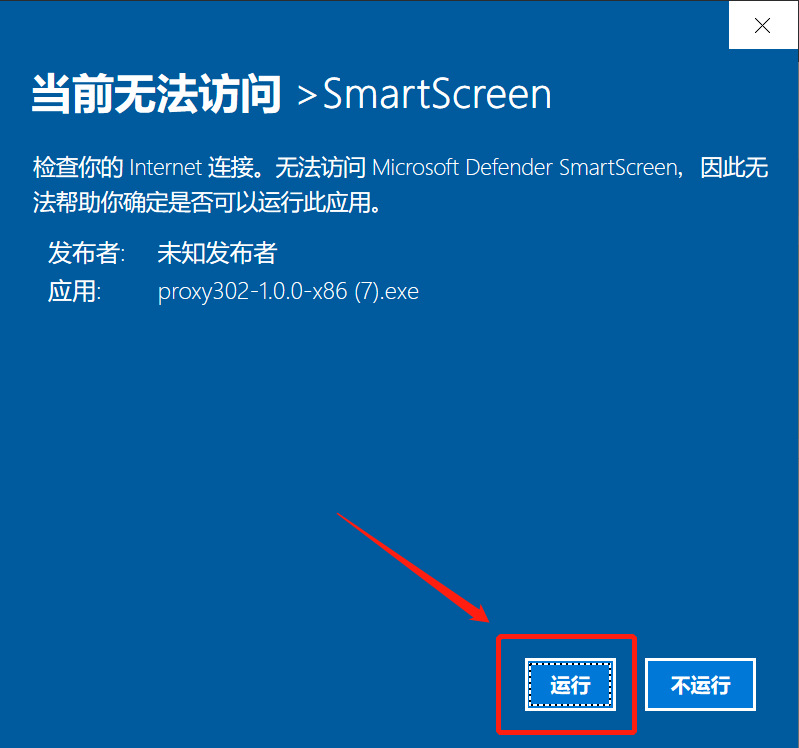
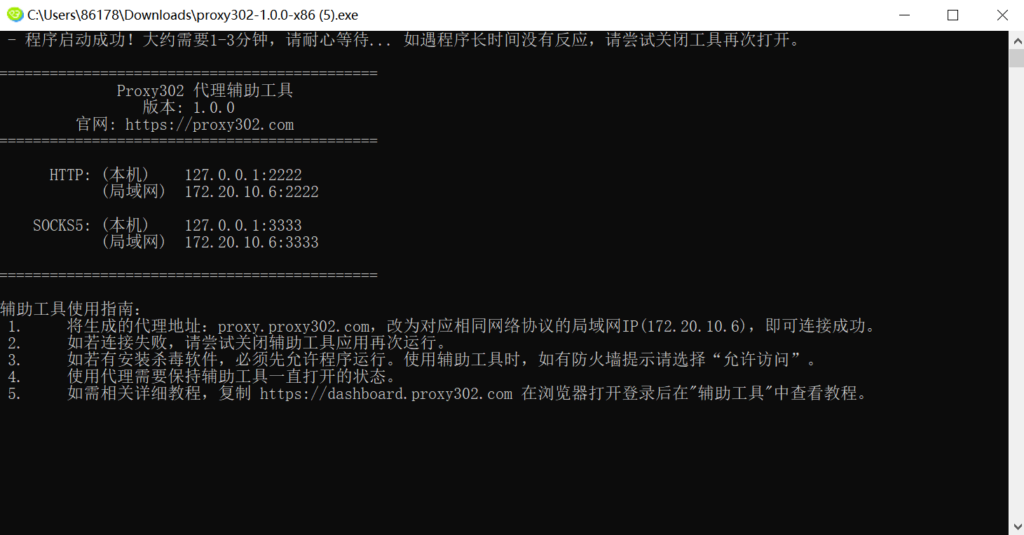
3.Wait for it to load. Once loaded successfully as shown below, the auxiliary tool has started. Minimize it to let it run in the background.
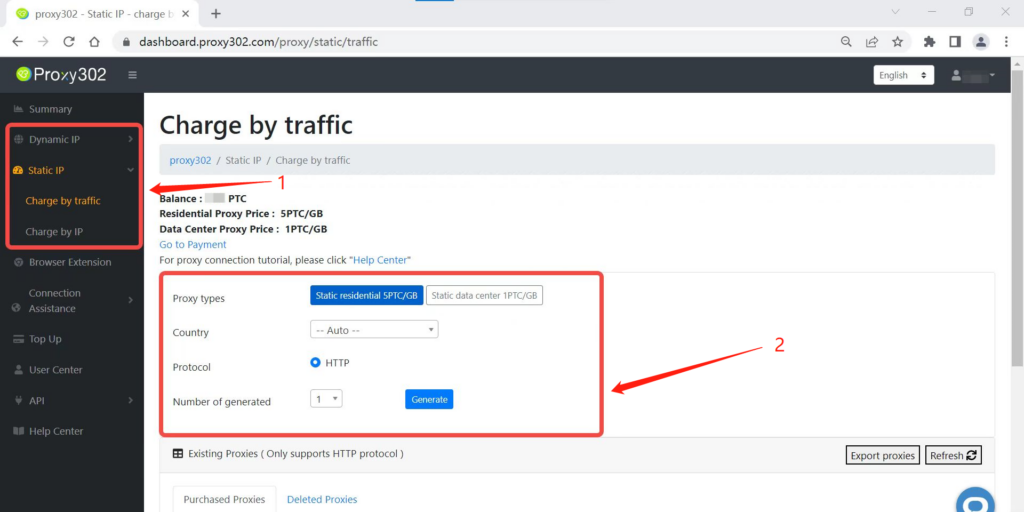
4.Select the required proxy type, country, and protocol type (HTTP/SOCKS5), then click to generate the proxy.
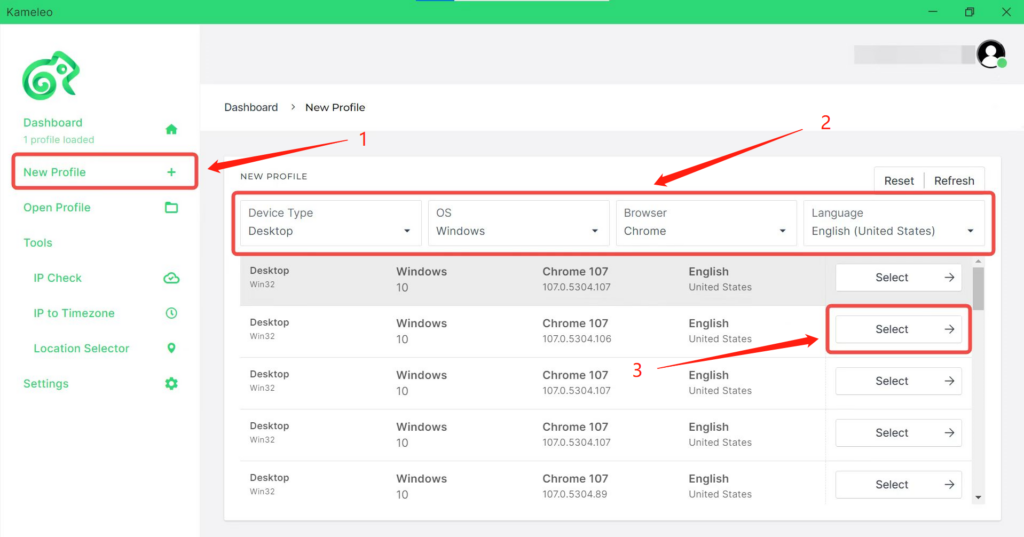
5.Click "New Profile" and select your preferred profile.
6.Select the corresponding proxy protocol: HTTP/SOCKS5.
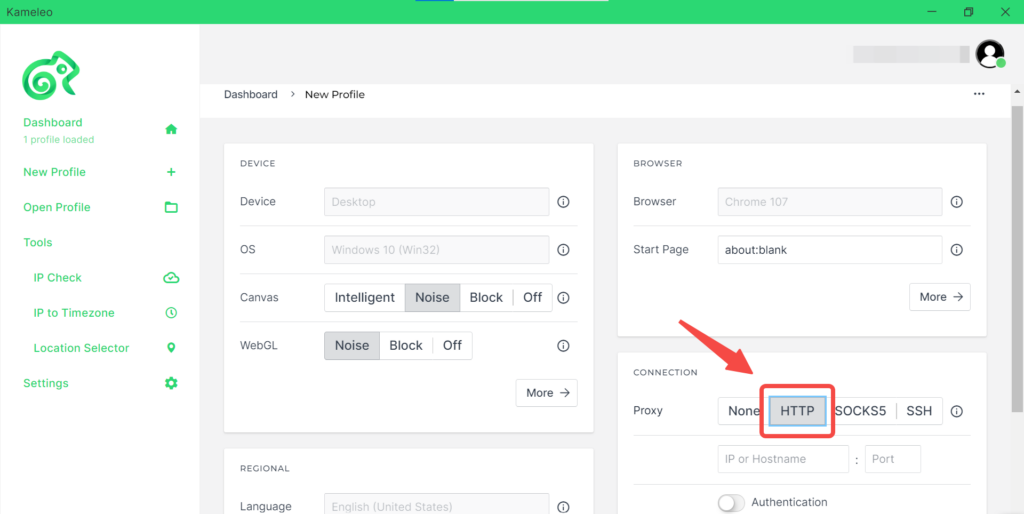
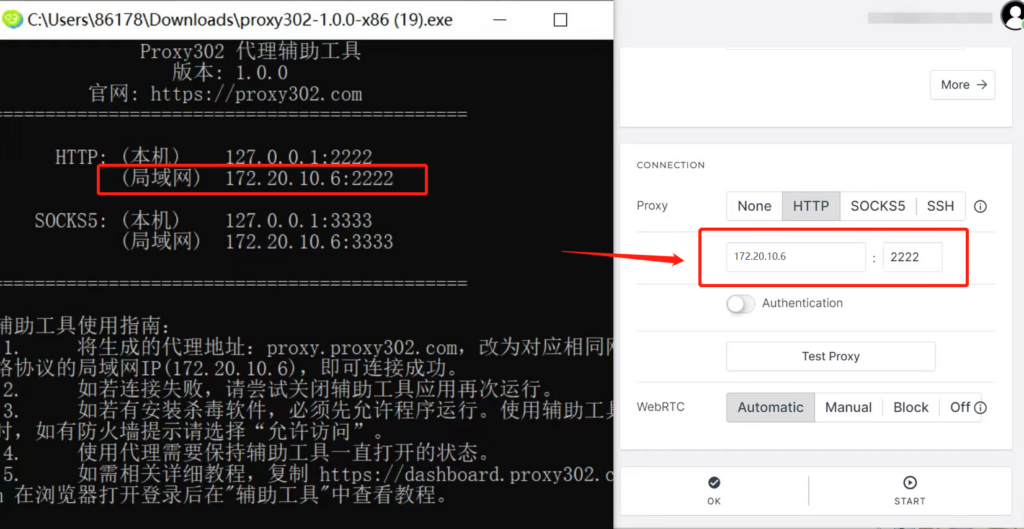
7.Open the auxiliary tool and enter the LAN [Proxy Address, Proxy Port] into the [IP Address, Port] input fields of the Kameleo browser.
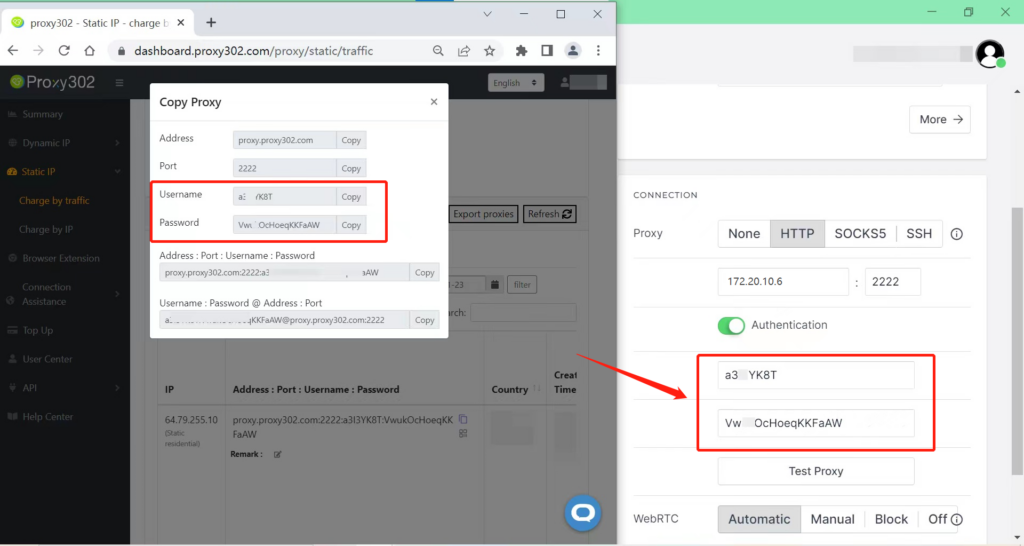
8.Copy and paste the proxy information [Username : Password] generated by Proxy302 into the Kameleo browser.
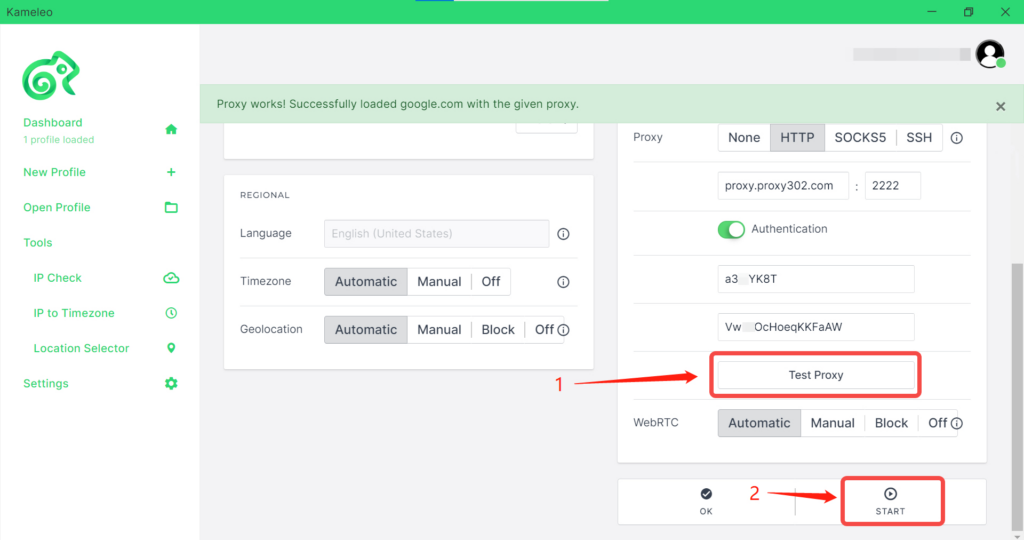
9.Click the [Test] button, and after successfully connecting to the proxy, click [Save and Open].
10.After opening the Kameleo browser, secondary verification is required; enter the [Username : Password].
11.Enter "ipinfo.io" in the browser; if the IP address on the page matches the configured proxy IP, the proxy is set up successfully.