Hubstudio
Legacy guide: screenshots and helper-tool steps may differ from the current product.
This is an English translation of a legacy guide. For the original wording, read the Chinese original.
Hubstudio fingerprint browser is a multi-account security management system developed by Fujian Zixun Information Technology Co., Ltd. for cross-border e-commerce enterprises, allowing for safer and more efficient account asset management. It integrates a vast array of applications such as product research and efficient operations, while also providing automated API services, dedicated to creating a secure, efficient, and convenient SaaS platform for customers, helping Chinese enterprises expand globally.
Click for Hubstudio registration link: http://suo.im/75Mzy

Setting up Proxy302 proxies in Hubstudio requires an active internet connection (currently only Proxy302 SOCKS5 proxies can be configured). If you do not have an active internet connection, please refer to the Non-Overseas Connection Tutorial; if you are already connected, please refer directly to the Overseas Connection Tutorial.
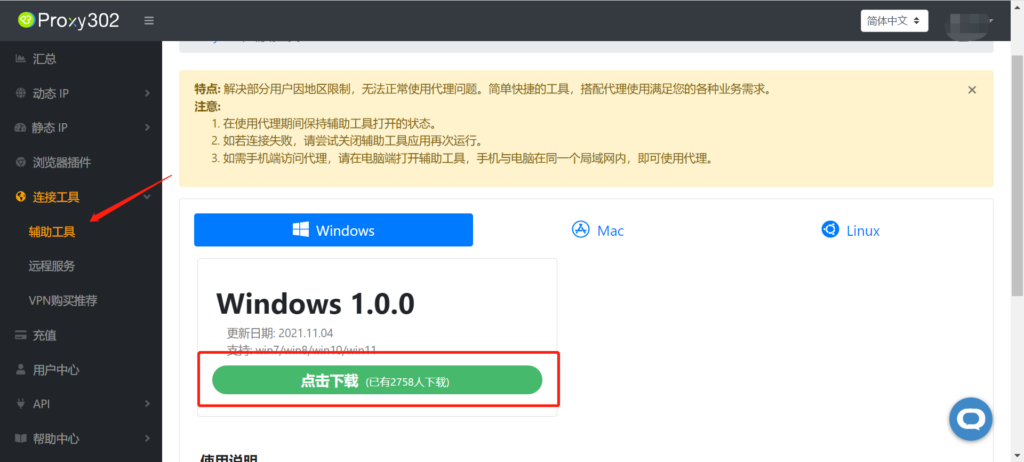
Non-Overseas Connection Tutorial1. Log in to Proxy302, find [Auxiliary Tools], and download it.
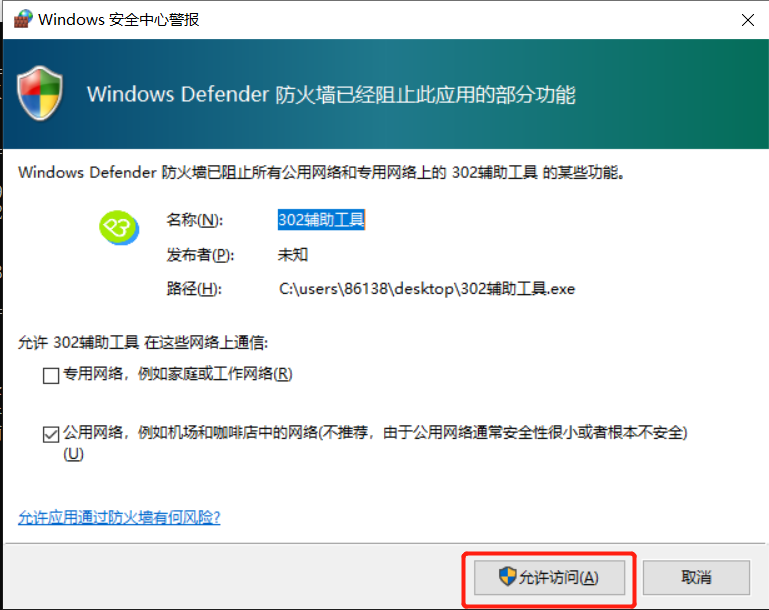
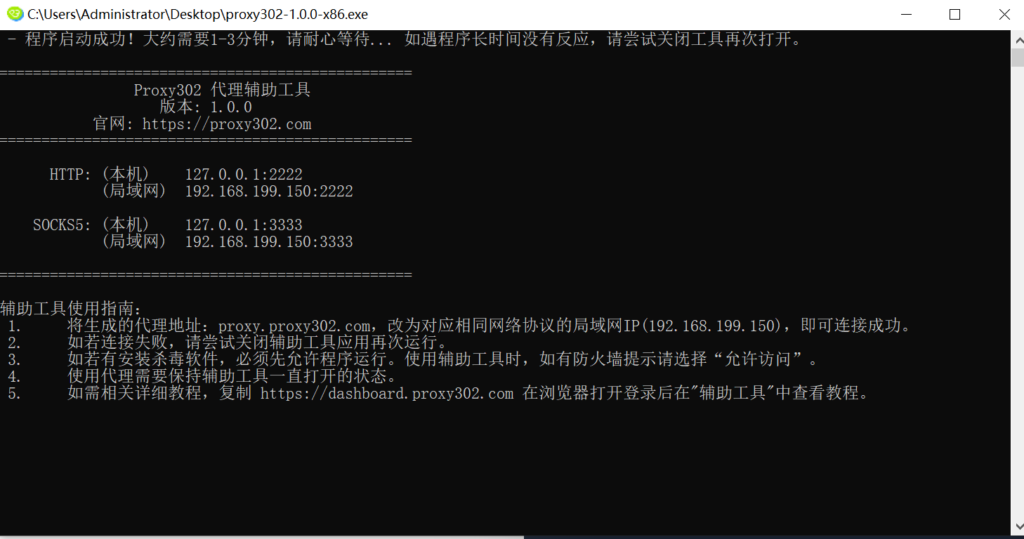
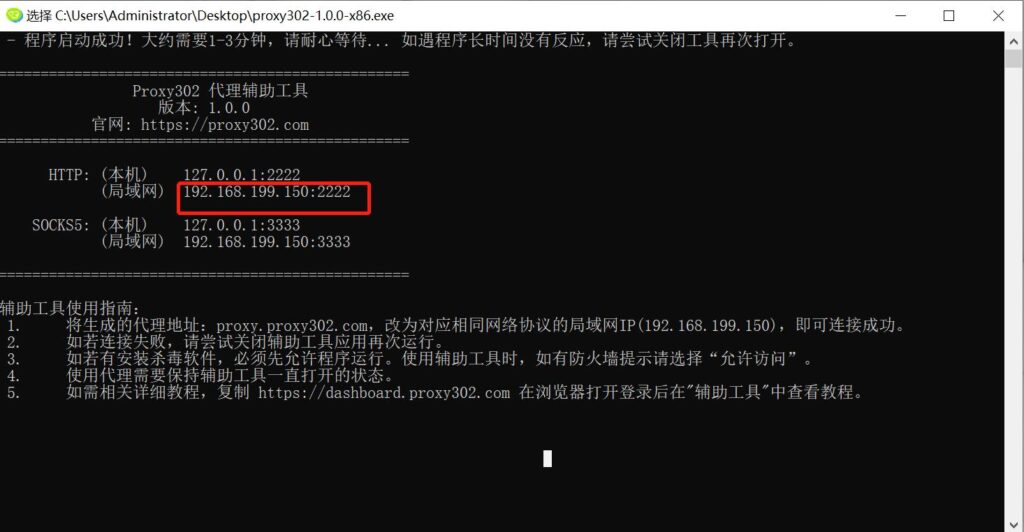
2. Open the auxiliary tool (if a firewall appears, please allow access).
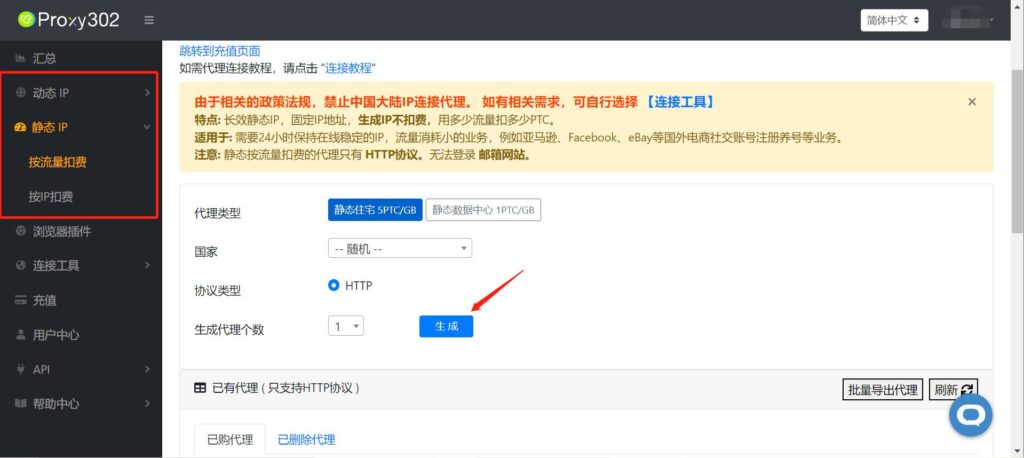
3. Log in to Proxy302 to generate an IP. (Generate the required IP type as needed; the example in the image shows a static IP billed by traffic).
4. Open Hubstudio and find [New Environment].
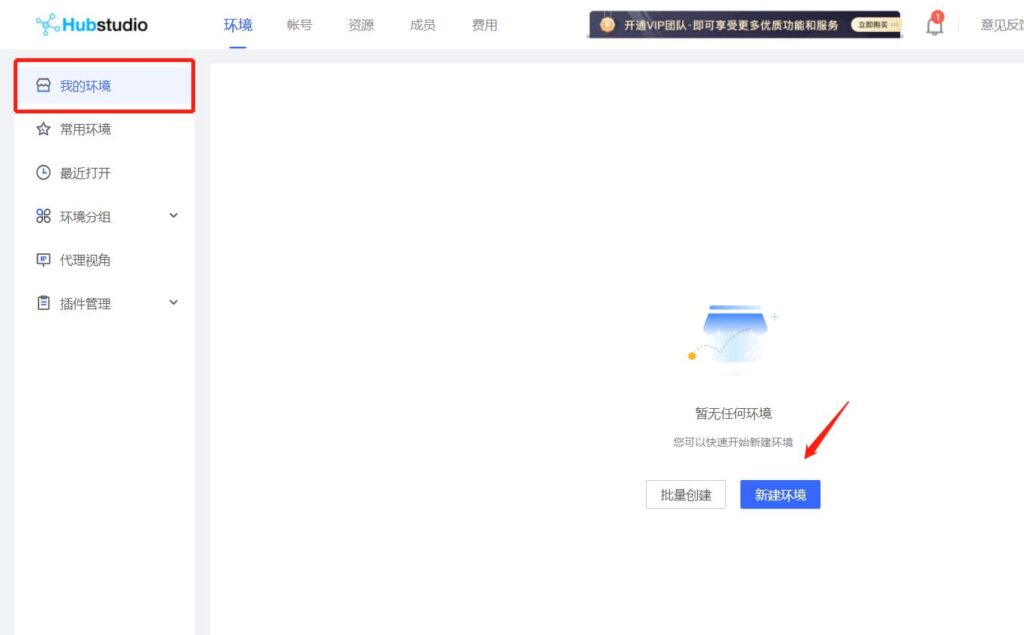
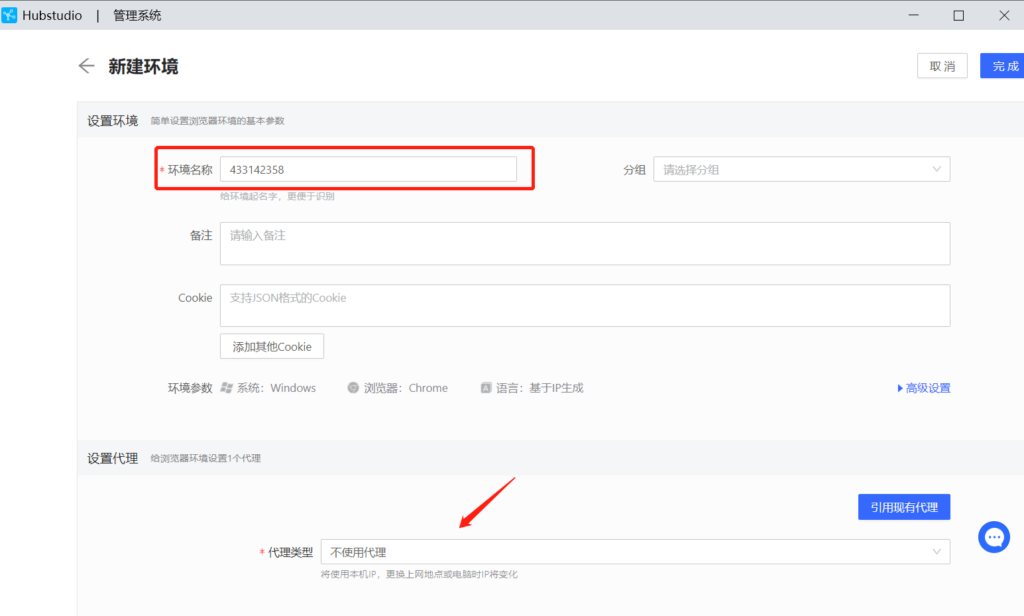
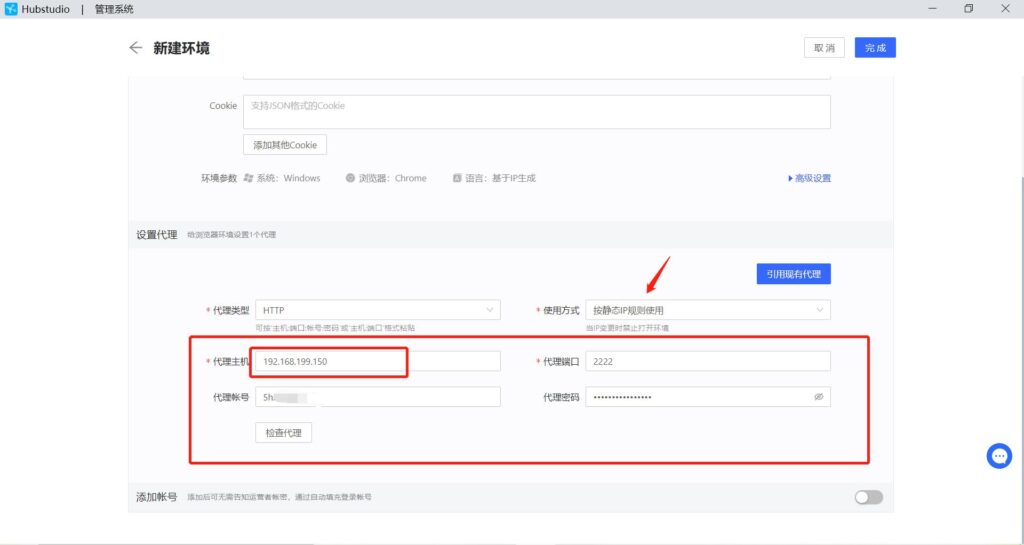
5. Enter any [Environment Name] and select the proxy type in the proxy settings.
6. Copy the generated Proxy302 IP information into Hubstudio. Note: You must change the [Proxy Host] to the LAN address from the auxiliary tool, then click Check Proxy.
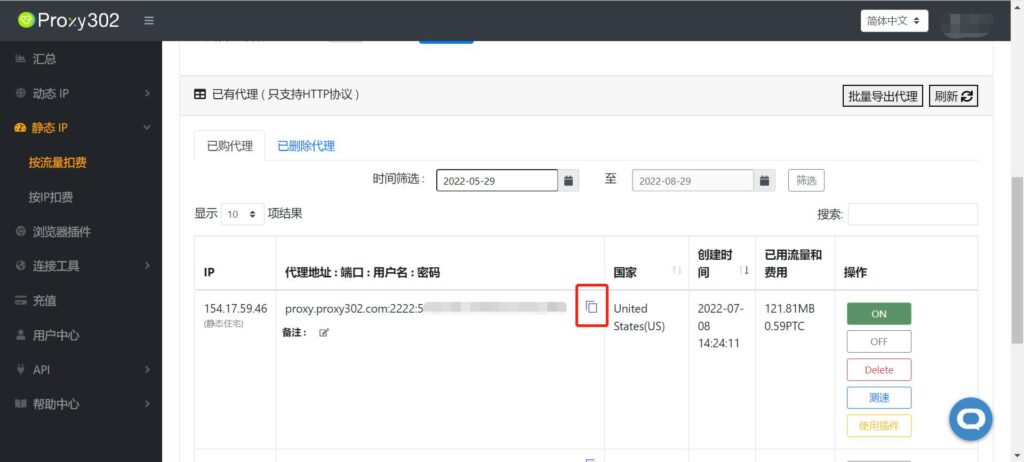
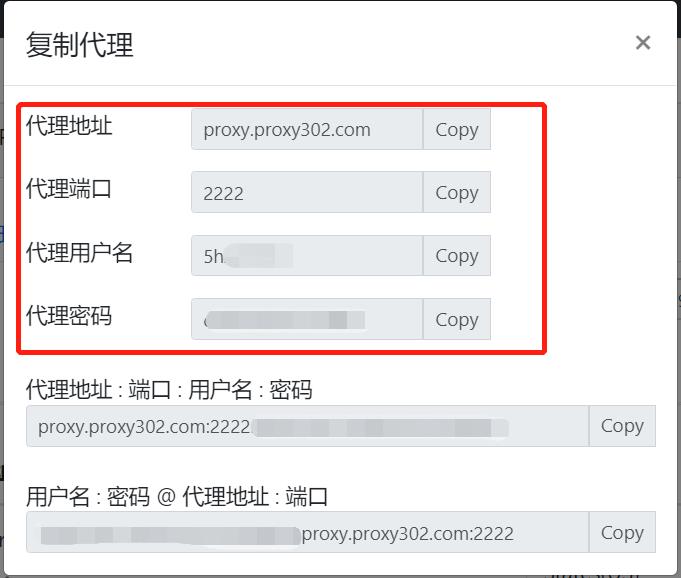
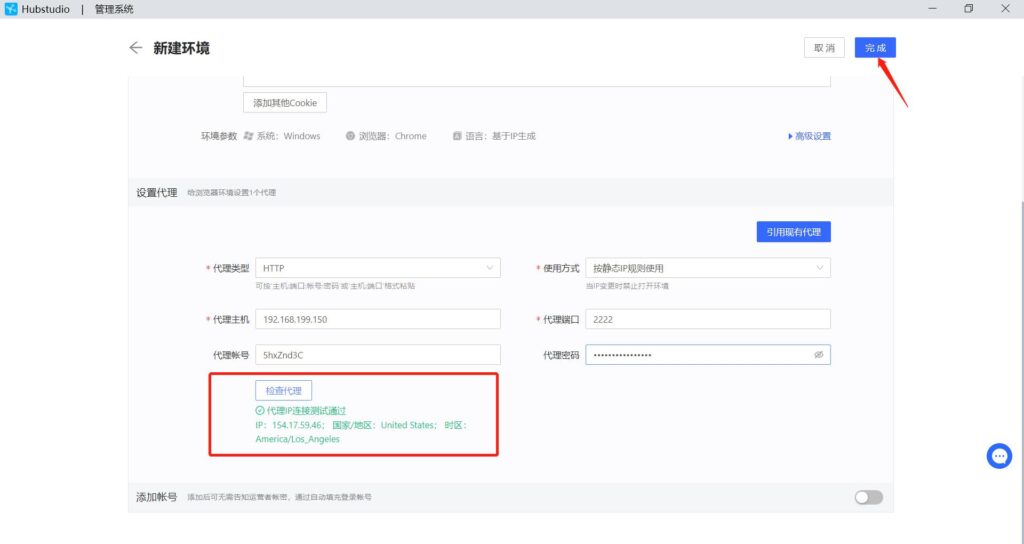
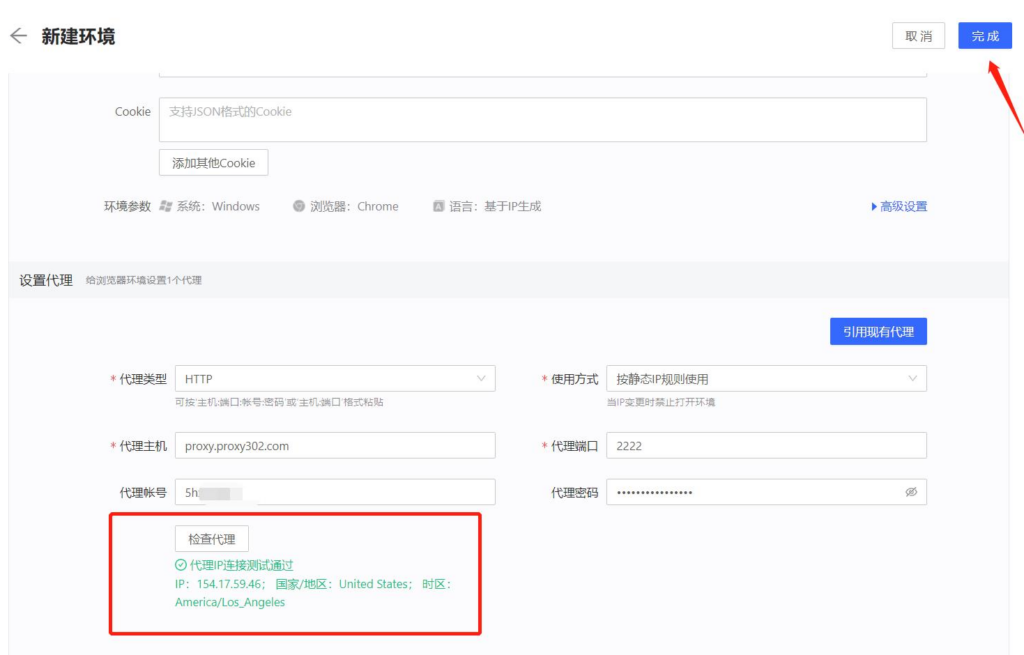
7. Once the proxy IP connection test is successful, click Finish.
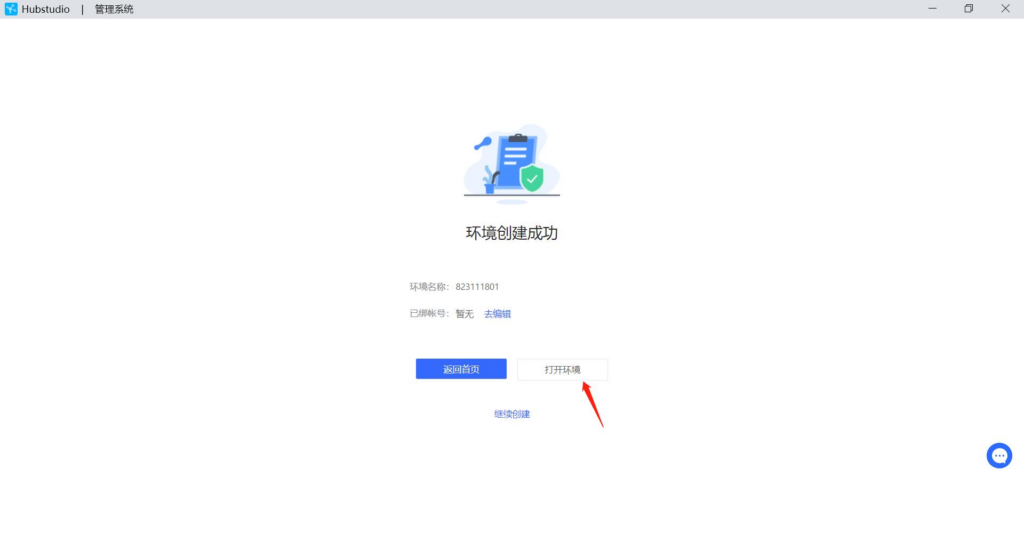
8. Once the environment is created successfully, you can open the environment.
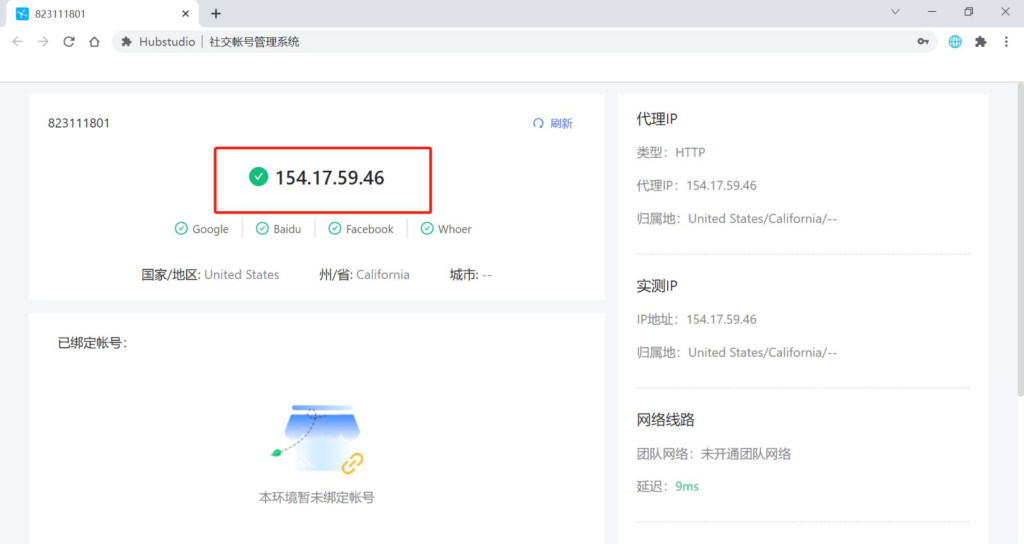
9. After opening the environment and navigating to the browser page, if the displayed IP address matches the generated IP address, the proxy is set up successfully.
Overseas Connection Tutorial
1. Log in to Proxy302 to generate an IP. (Generate the required IP type as needed; the example in the image shows a static IP billed by traffic).
2. Open Hubstudio and find [New Environment].
3. Enter any [Environment Name] and select the proxy type in the proxy settings.
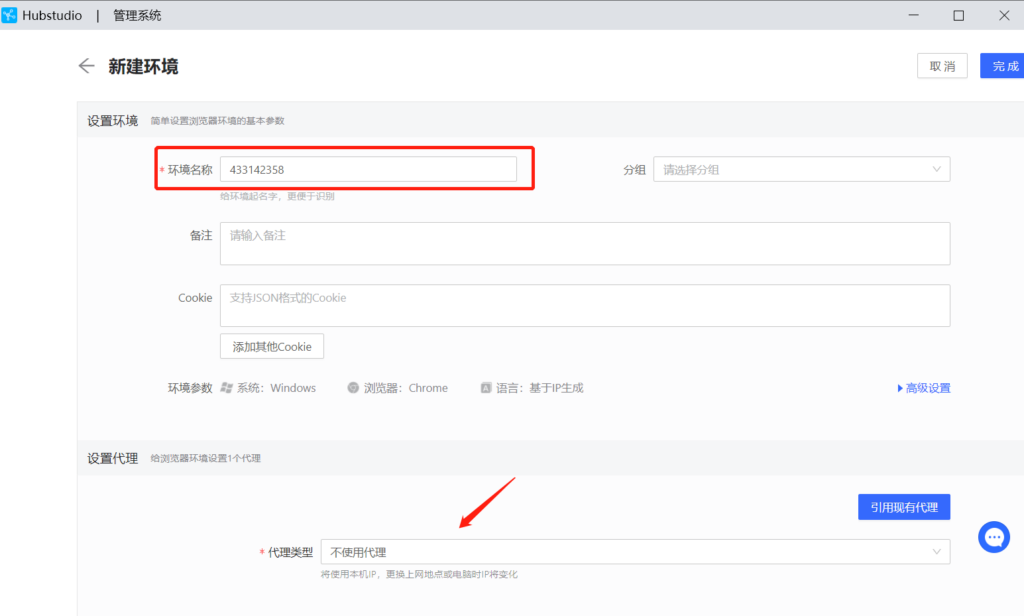
4. Copy the generated Proxy302 IP information into Hubstudio and click Check Proxy.
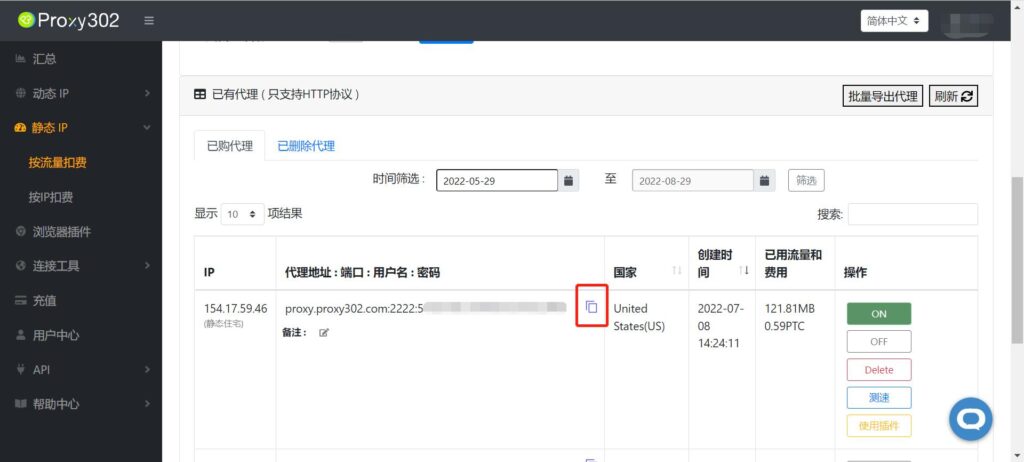
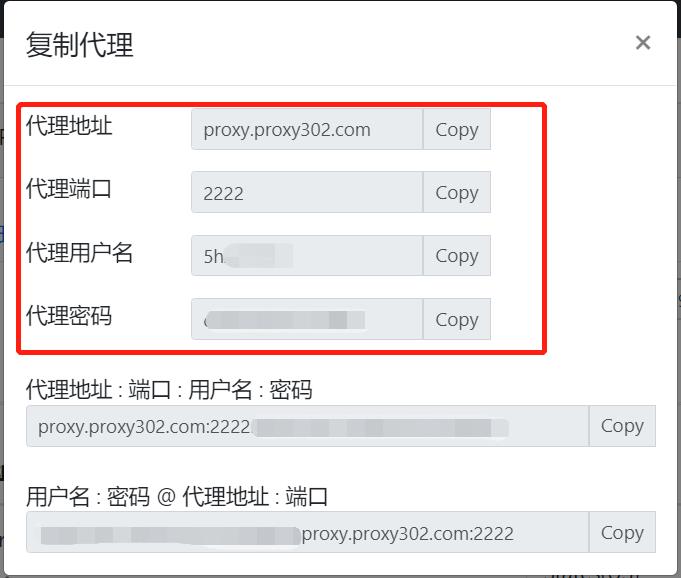
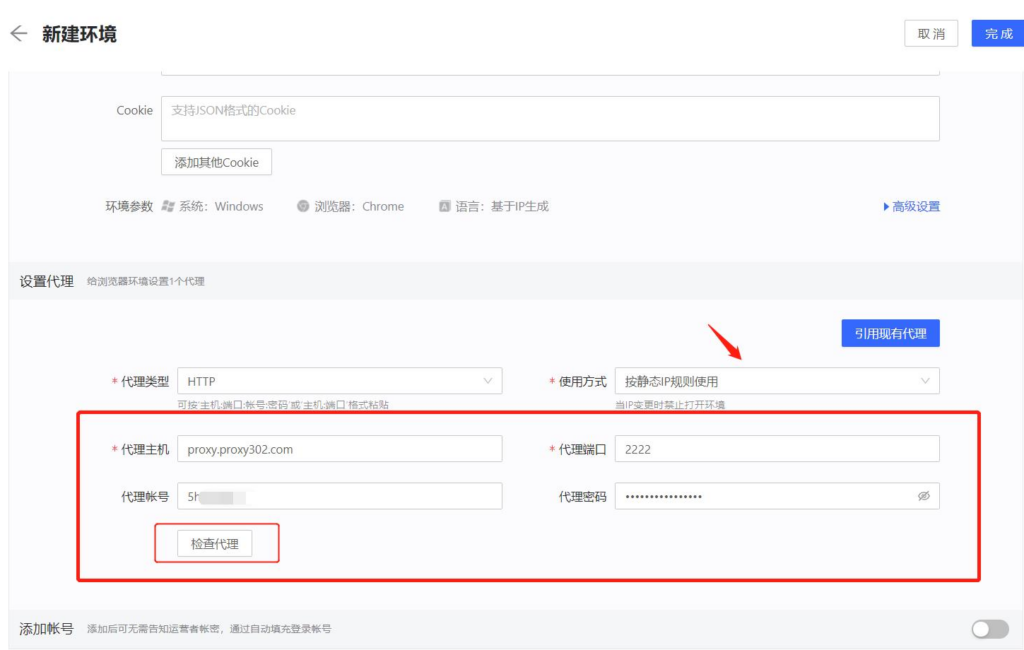
5. Once the proxy IP connection test is successful, click Finish.
6. Once the environment is created successfully, you can open the environment.
7. After opening the environment and navigating to the browser page, if the displayed IP address matches the generated IP address, the proxy is set up successfully.