360 Browser - Proxy302 Extension
Legacy guide: screenshots and helper-tool steps may differ from the current product.
This is an English translation of a legacy guide. For the original wording, read the Chinese original.
1. Log in to the Proxy302 client, open the [Browser Extension] interface, and click to download the [Extension Package].
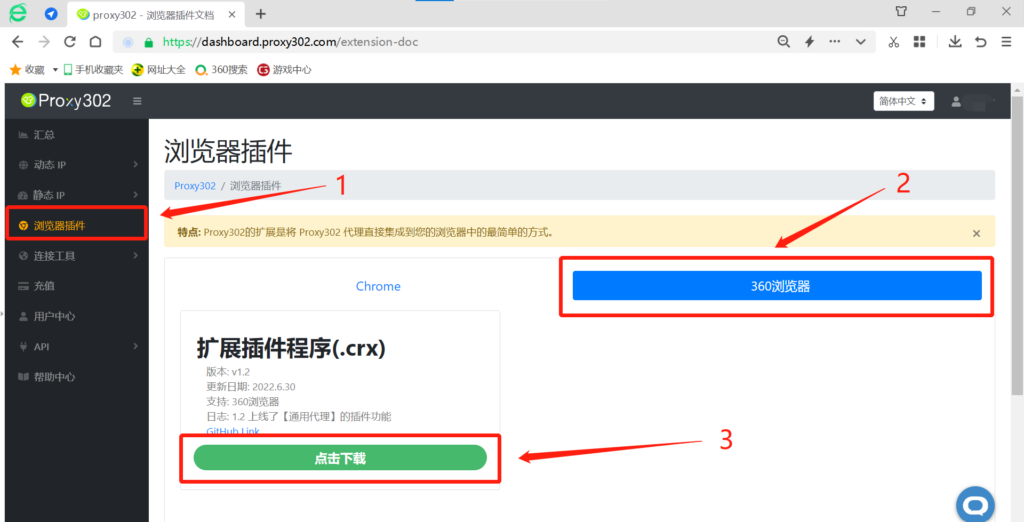
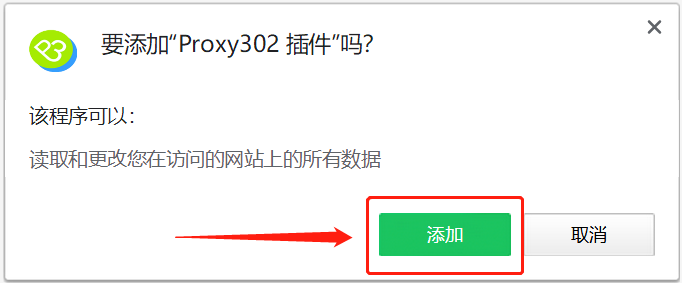
2. Open [Proxy302-browser-extension] and add the Proxy302 extension.
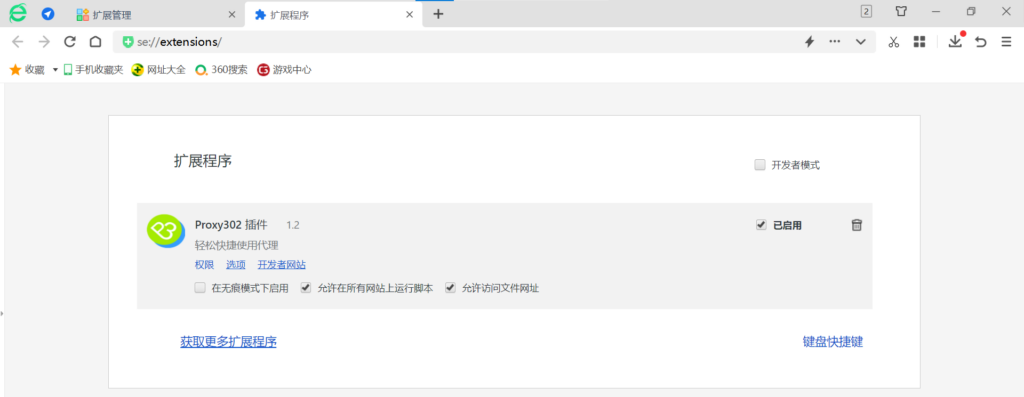
3. The Proxy302 extension has been installed successfully.
Connection Tutorial for Non-Overseas Environments
1. Log in to the Proxy302 client, open [Connection Tools] - [Auxiliary Tools], and click to download.
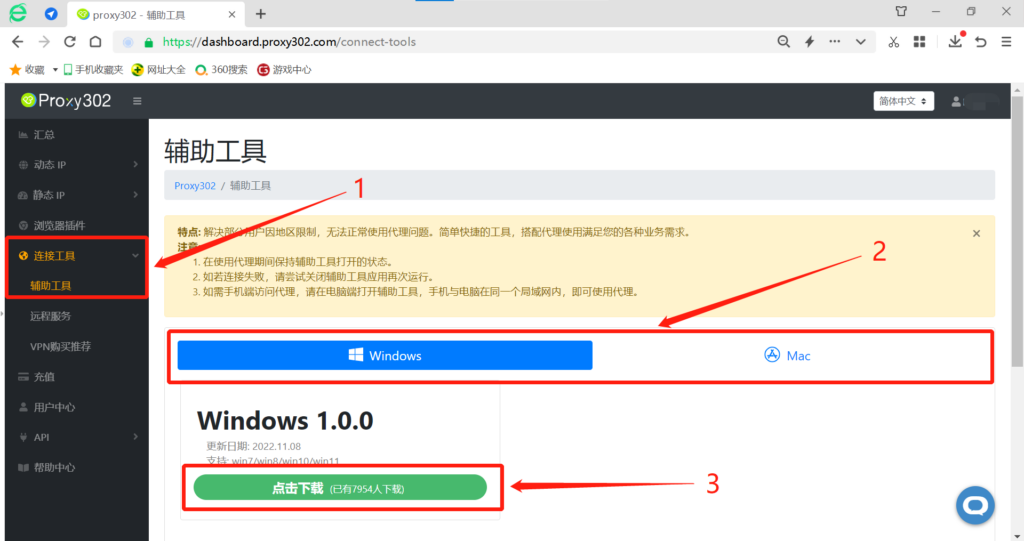
2. Run the application.
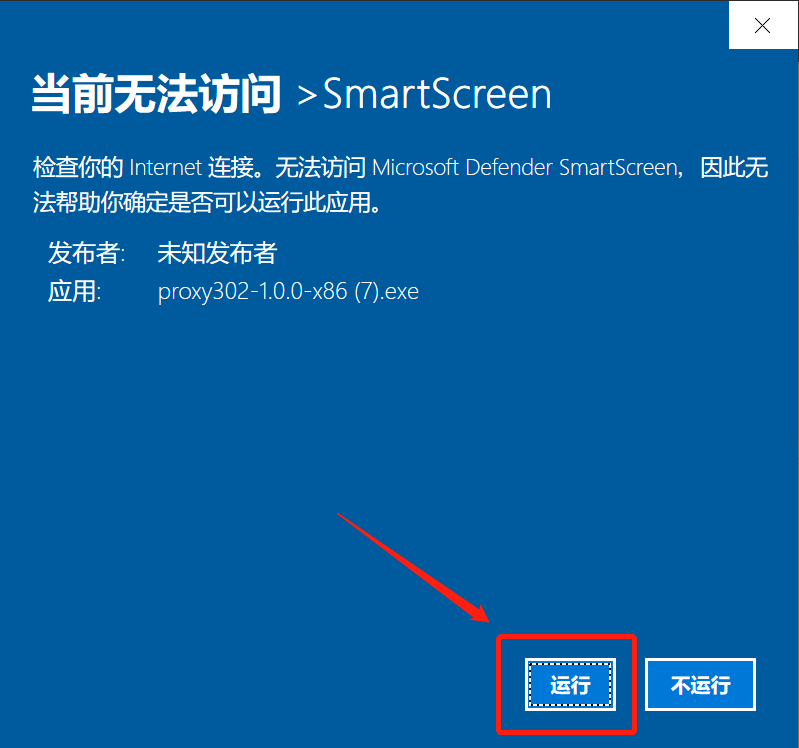
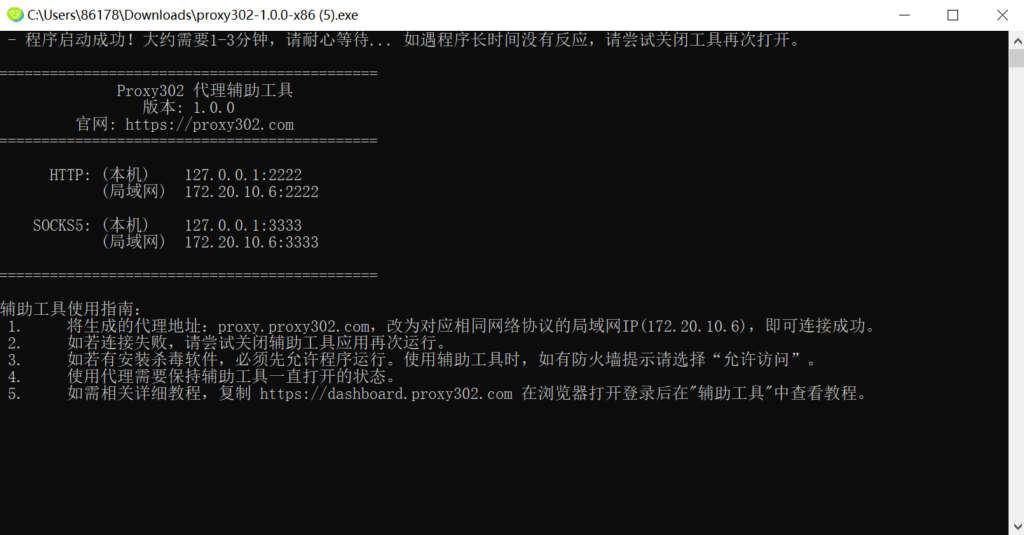
3. Wait for it to load. Once loaded successfully, it will appear as shown below. The auxiliary tool is now active; minimize it to keep it running in the background.
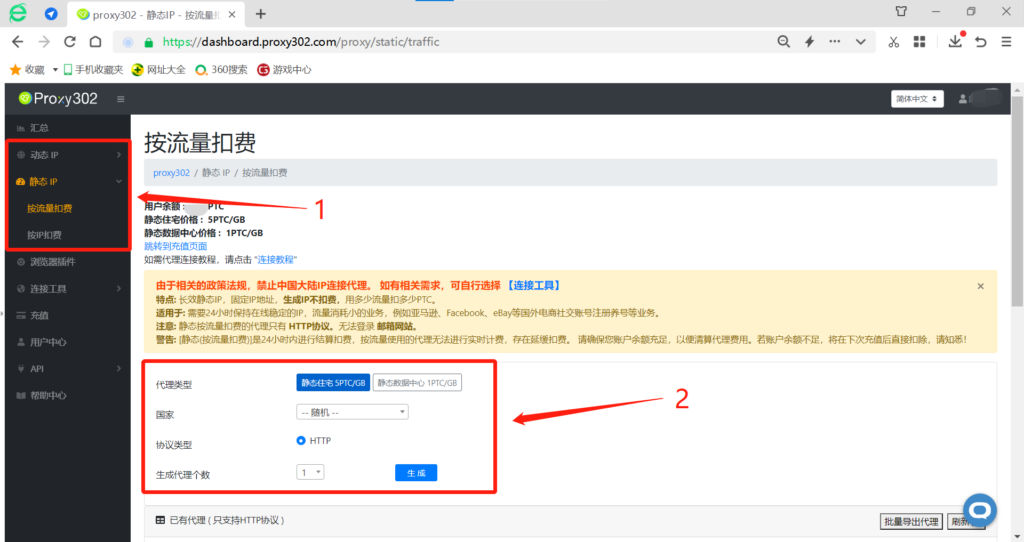
4. Select the required proxy type, country, and protocol type (HTTP/SOCKS5), then click to generate the proxy.
5. Open the 360 browser, click the extension icon, and check the [Use Auxiliary Tool] option. The extension will fill in the local IP by default, or you can manually change it to a LAN IP.
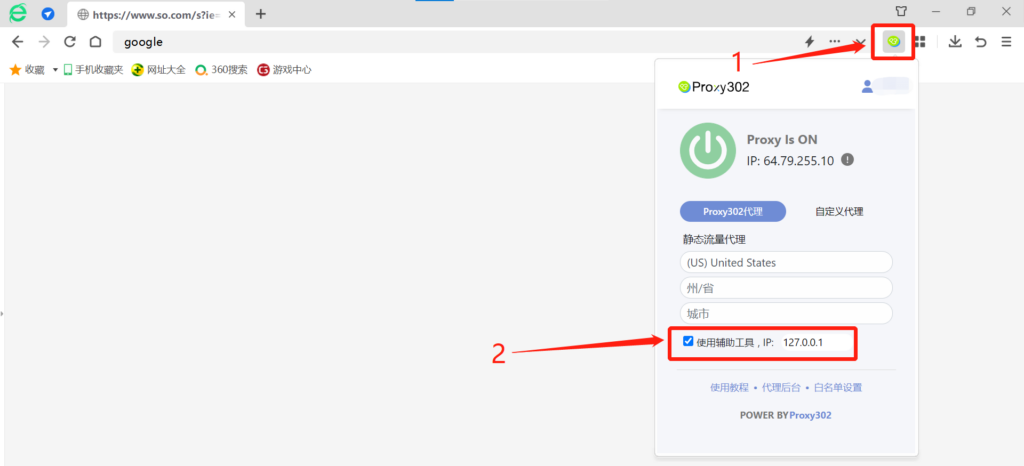
6. View the IP address.
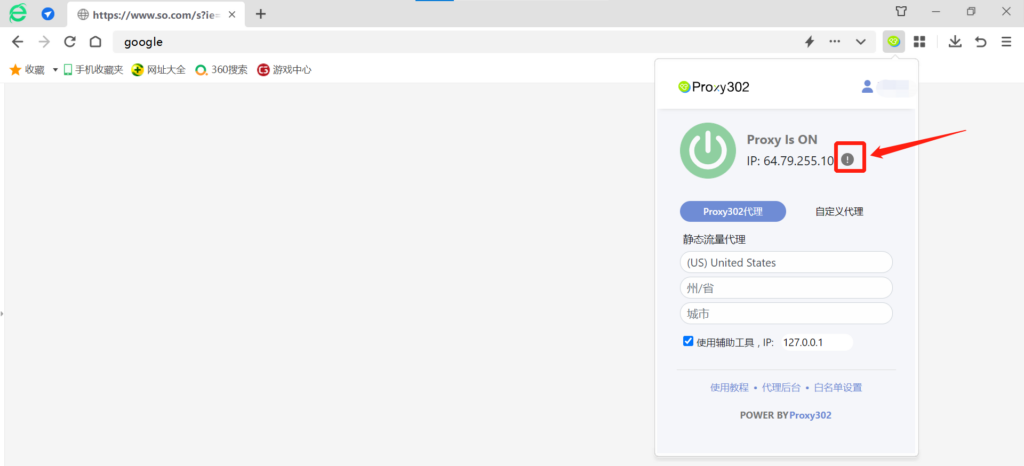
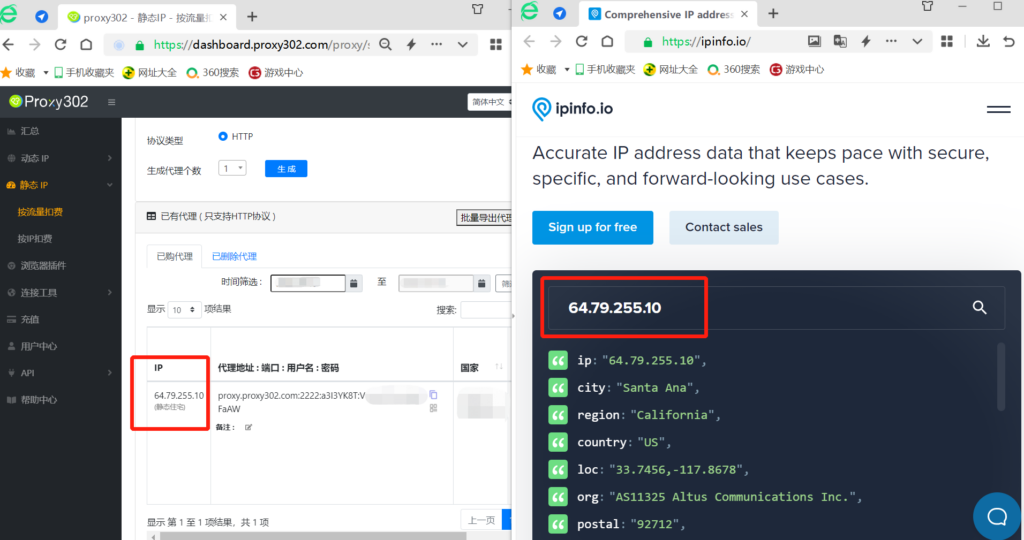
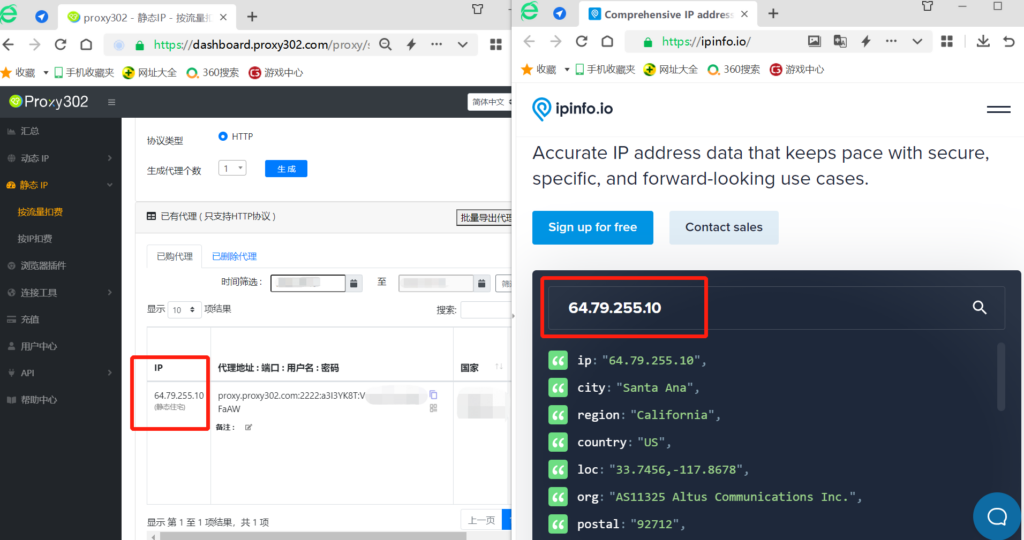
7. Check your IP address. If the IP address displayed on the webpage matches the IP address purchased from Proxy302, the connection is successful.
Connection Tutorial for Overseas Environments
1. Log in to the Proxy302 client, select the required proxy type, country, and protocol type (HTTP/SOCKS5), then click to generate the proxy.
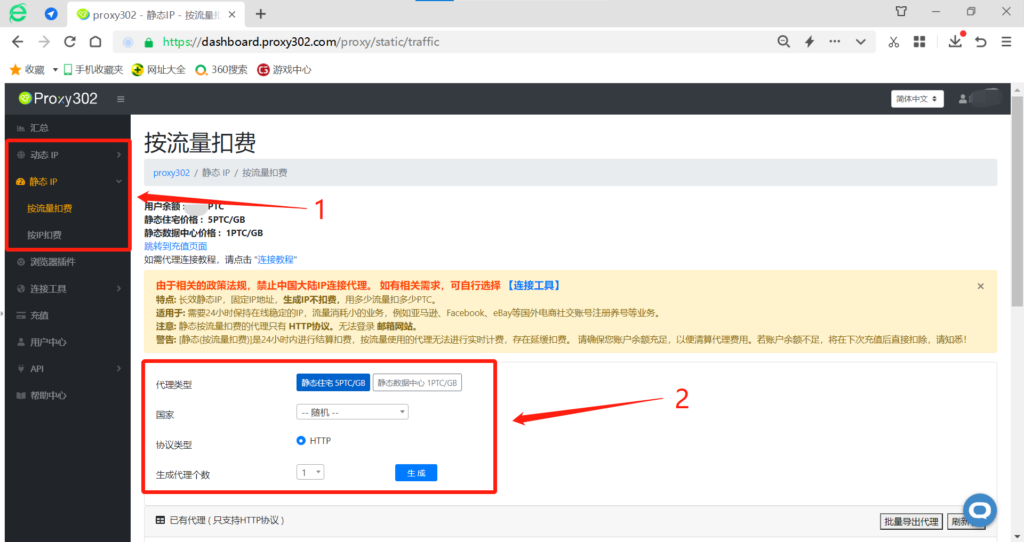
2. Open the 360 browser, click the icon in the top right corner, open the Proxy302 extension, and view the IP address.
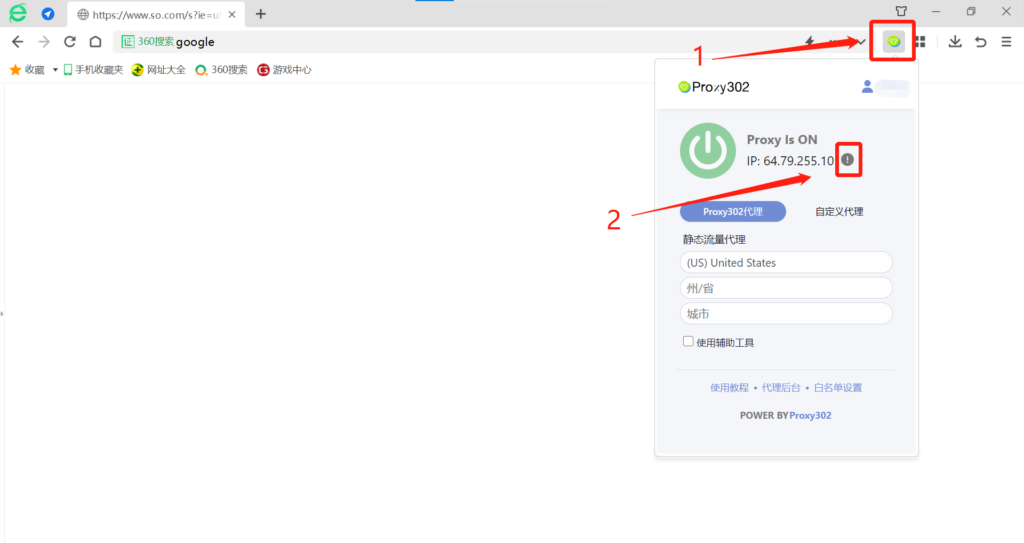
3. Check your IP address. If the IP address displayed on the webpage matches the IP address purchased from Proxy302, the connection is successful.